Starting a shift
Log in with your account. Open "Overview", check new and overdue requests, then review chats and notifications. If necessary, enable push notifications and send a test notification to verify the device.
Guest check-in
- Open the stays section.
- Check available rooms for the required dates. Availability search and the calendar are available for this.
- Select a room, specify the check-in date and time and the number of nights.
- Fill in the guest's name, email and contact phone number if known.
- Create the stay and give the guest the displayed five-digit access code along with the link to the guest menu.
The system checks for overlapping stays in the same room. The guest's access is valid within their stay.
In the client card, you can change contact details, extend the stay and change the access code. If the guest stays longer, first arrange the extension in the system.
Handling a request
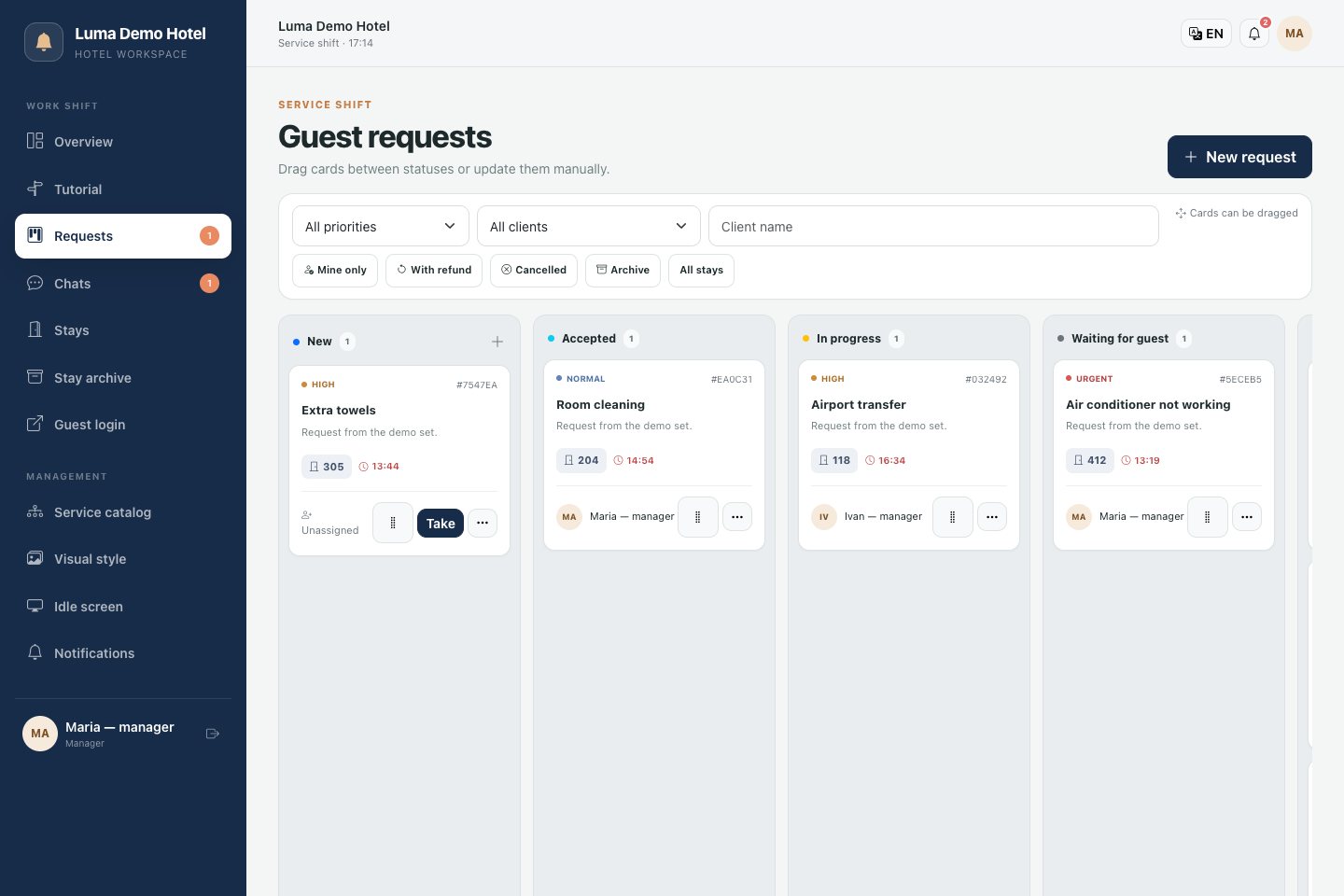
Open the "Requests" section. The board shows tasks by work stages; filters help find the required requests.
- Open the new request card.
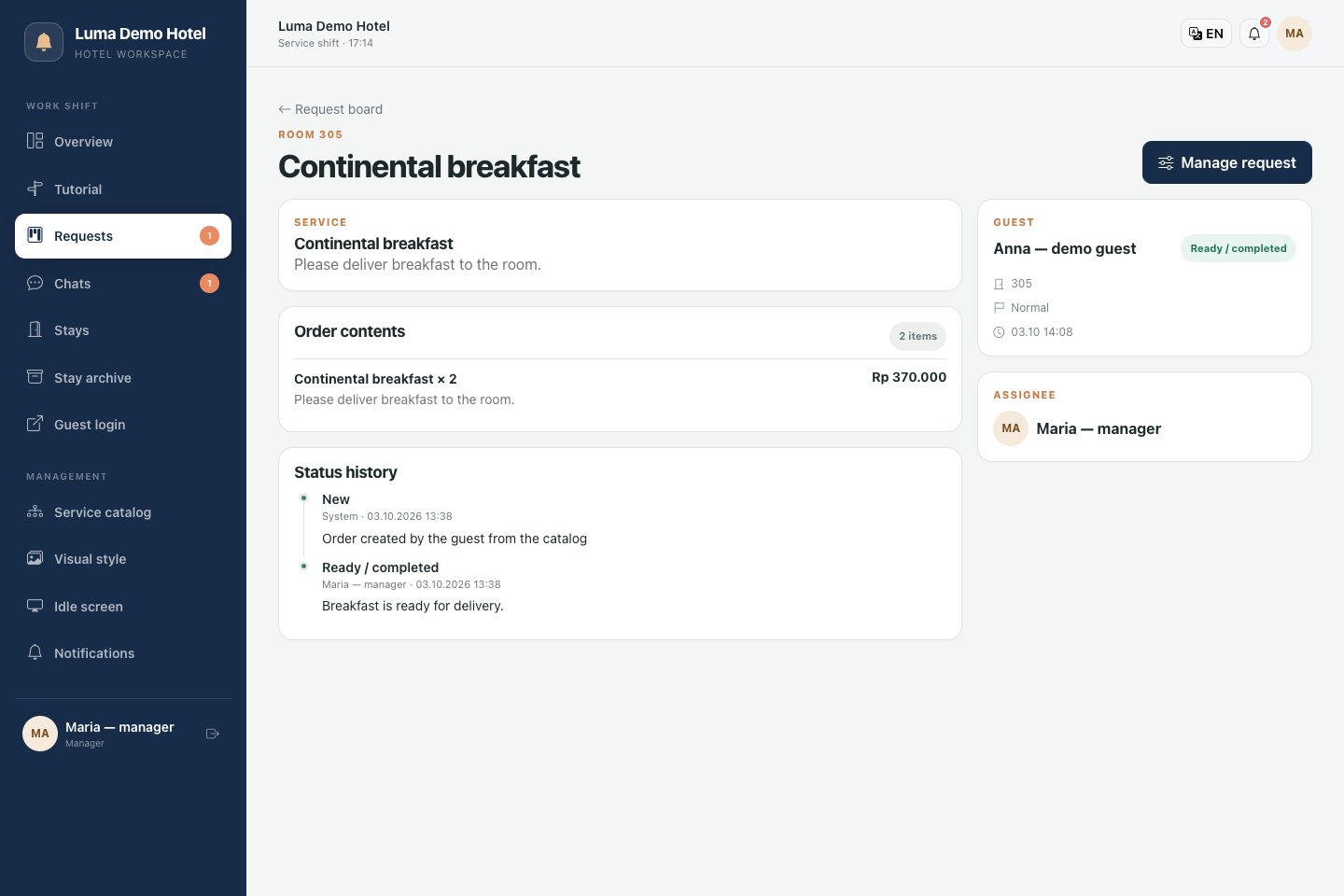
- Check the room, service, quantity, selected options, comment, cost and booking time.
- Take the request into work or assign a performer.
- Update the status as work progresses.
- When the service is provided, mark it as ready so the guest can confirm receipt.
| Status | How to use |
|---|---|
| New | The request has been received, it needs to be accepted |
| Accepted | A performer has been assigned |
| In progress | The service is being performed |
| Awaiting guest | A response or action from the guest is required |
| Ready | The service is ready, confirmation is pending |
| Completed | Performance is complete |
| Cancelled | The request has been cancelled |
This is the standard workflow. The history in the card preserves status changes and helps restore the progress of execution.
If the guest contacted in person or by phone, create a request manually: specify the stay, task content, priority and performer.
Communicating with the guest
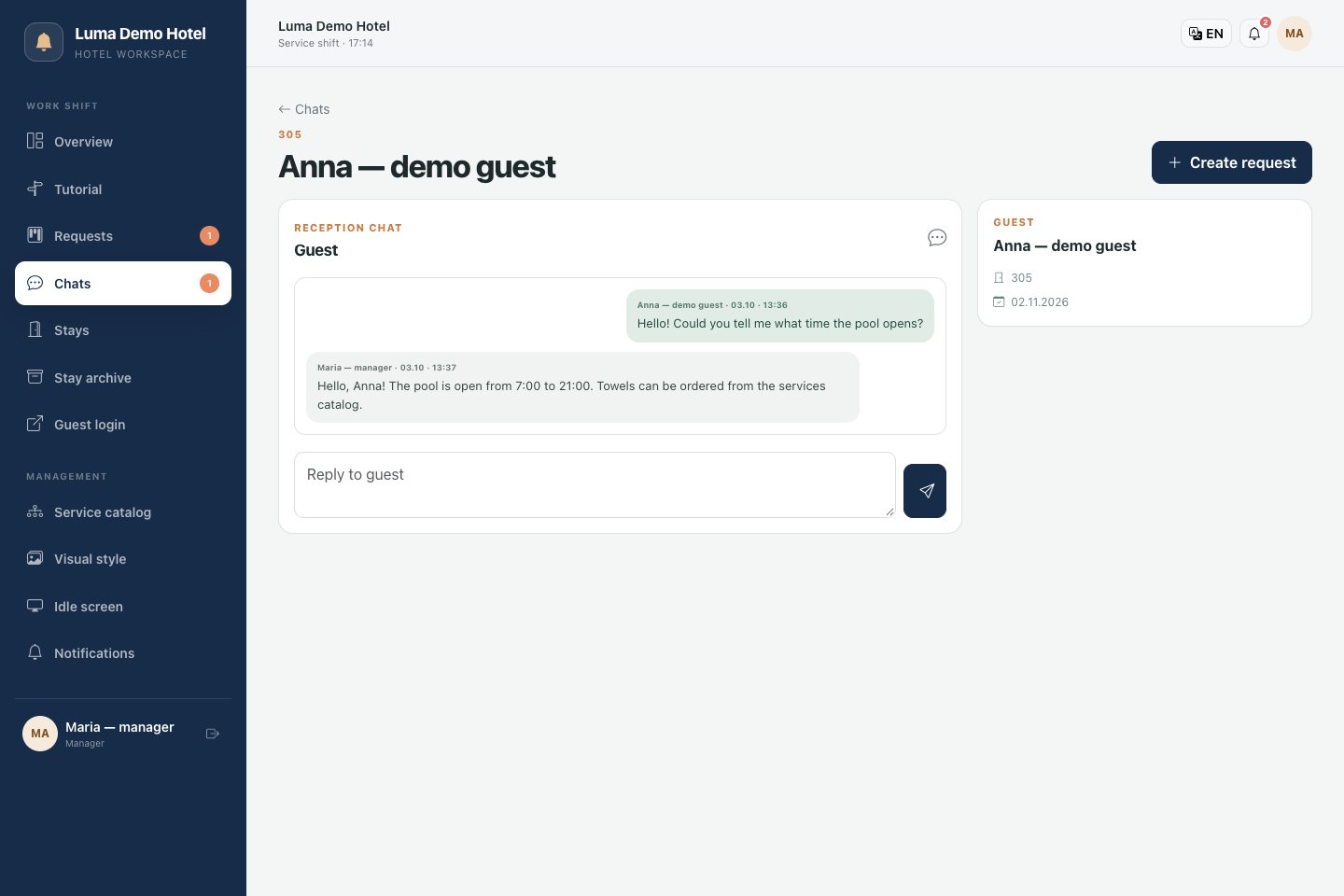
In the "Chats" section, open requests to the reception and reply in the conversation. If a message requires separate work, create a task from the chat and assign a performer.
For example, from the message "Need extra towels" you can create a delivery task. The conversation preserves the context, and the request allows you to monitor execution.
Cost, payment and refunds
The payment method is set in the service catalog. Before performing a paid request, check it in the card.
- To the room account: after completion, the service can be charged to the stay account.
- Cash / on completion: for a completed request with pending cash payment, a mark of payment received is available. Use it after the actual settlement.
- Prepayment or online: these options set the payment condition. The presence of such an option does not by itself mean that the system processes bank payments; settle according to the hotel's accepted process.
If a different cost is agreed, use the price adjustment in the request card. Specify the new amount and a mandatory comment with the reason for the change. The adjustment history is stored separately; changing the price in the catalog does not rewrite old orders.
The guest may request a partial or full refund. Review the request, agree on the decision and record the result in the card. A refund record in the system does not by itself transfer money to the guest.
Bill and check-out
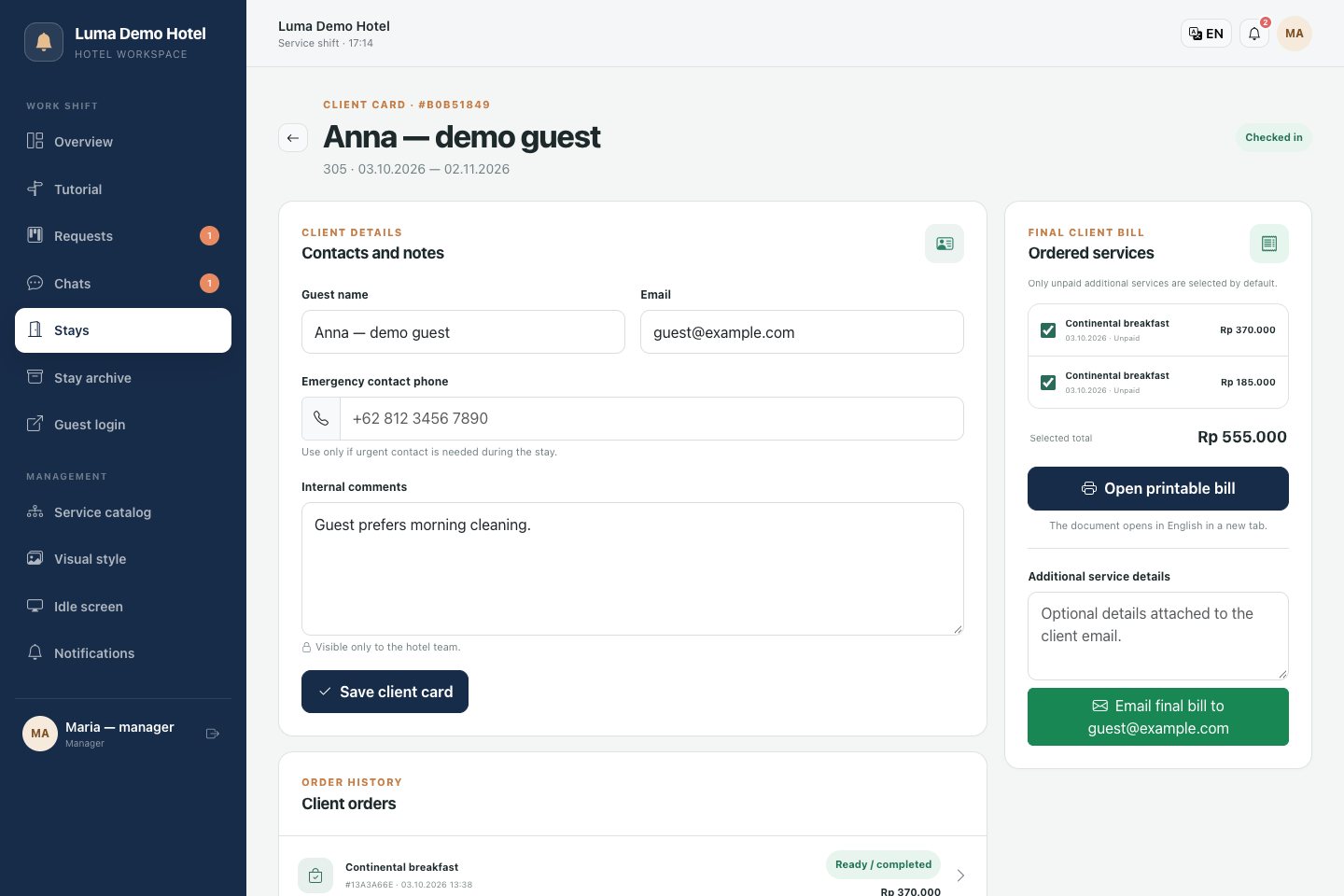
In the stay card, review services and amounts. For documents, you can select the required items:
- Bill — an invoice for unpaid services;
- Receipt — a document for services with payment marked.
Documents open in a print format. Via the browser's print window, they can be saved as PDF. The final bill can also be sent to the guest's email if the address is specified and email sending is configured.
Before check-out, check unfinished requests and settlements, then process the check-out. The guest's access is terminated; the stay history is available in the archive. Stays with an expired term are also closed automatically.
Working with the catalog
A manager can update services, prices, descriptions, translations, availability and booking parameters. Before saving, check that the change applies to future orders and is clear to guests.